How to turn an Android tablet into a check-in kiosk for your small business
A tablet on a stand by the door can greet walk-ins, collect sign-ins and free up your front desk. Here is how to set one up properly, what it costs and where the off-the-shelf route runs out.
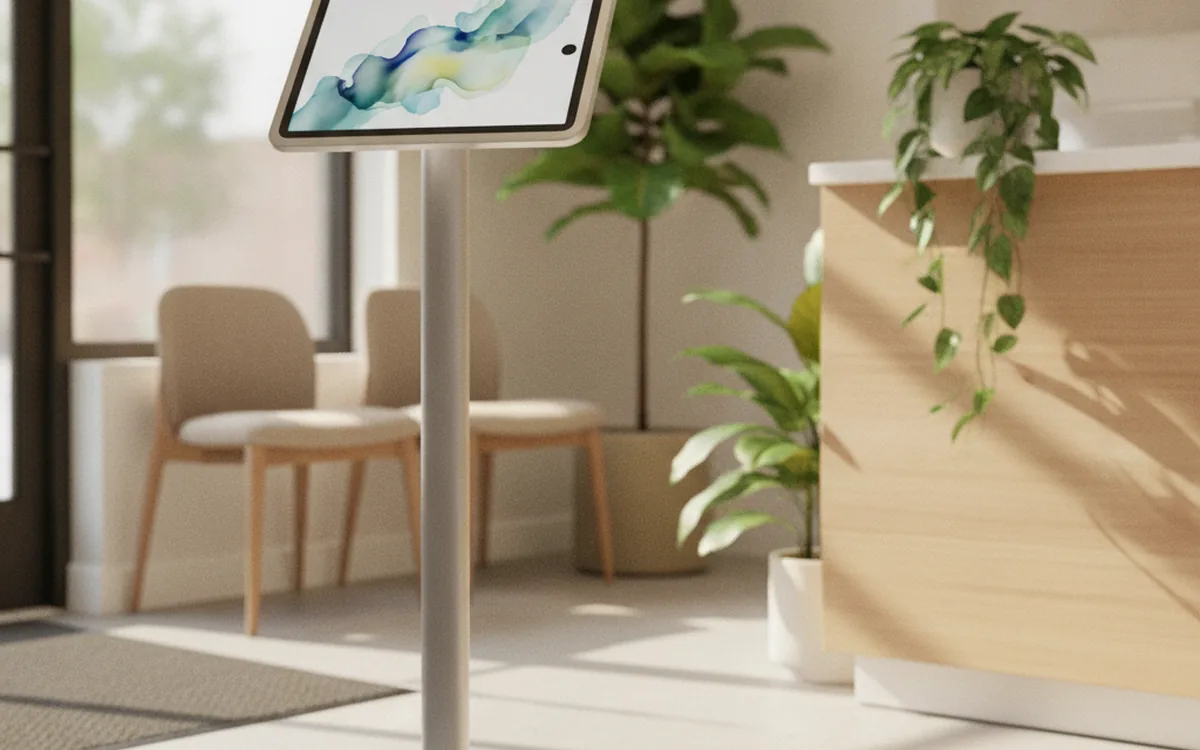
Short answer: you can turn a standard Android tablet into a customer check-in kiosk in an afternoon. Mount it on a secure stand, install a check-in app or a kiosk browser pointing to your sign-in form, and lock the tablet to that one app using kiosk mode so visitors cannot wander into settings, email or the web. Budget a few hundred dollars for hardware and a small per-device software fee. Built-in app pinning is fine for supervised events, but an unattended lobby needs a proper kiosk app or device management.
We set up websites, booking pages and storefronts for clinics, salons, gyms, repair shops and offices around San Jose, and the self check-in tablet comes up more and more. Owners want the front desk to stop doing data entry while the phone rings. For most of them a ready-made kiosk app is the right first step, and this guide shows how to do it. For the few whose check-in has to talk to several systems at once, we also explain when it is worth paying for custom Android app development instead of another subscription.
The guide covers what a kiosk can do, the hardware you need, the three ways to lock a tablet down, a step-by-step setup, what to put on the check-in screen, how to connect it to your booking and customer tools, and how to keep it secure. It is written for businesses with one to fifty people, so the examples and budgets stay small.
What can a check-in kiosk do for a small business?
A check-in kiosk is a tablet that does one job for visitors: it lets them announce themselves, confirm details or sign something without waiting for a person. Typical uses in small businesses:
- Clinics and therapists: patients confirm their appointment, update contact details and sign intake or consent forms.
- Salons, barbers and groomers: walk-ins join the queue and get a text when a chair is free.
- Gyms and studios: members check in for a class and the attendance count updates on its own.
- Repair shops and service counters: customers drop off an item, describe the problem and leave a phone number.
- Offices and coworking spaces: visitors sign in, accept a visitor policy and the host gets notified.
- Shops and cafés: loyalty sign-ups, feedback after a visit or a newsletter opt-in near the till.
The value is less about looking modern and more about time and accuracy. Customers type their own email address, so there are fewer typos. Staff stop copying details from paper forms. And you get a timestamped record of every visit that you can actually search later.
What hardware do you need for an Android kiosk?
You need four things, and the stand matters as much as the tablet.
- A tablet with long software support. A 10 to 11 inch screen is the sweet spot for forms. Choose a model that still gets Android security updates for several years and has at least 4 GB of RAM. Business or rugged models cost more but survive drops and sticky fingers better.
- A secure stand or wall mount. Lockable enclosures cover the buttons and ports so nobody can press power or unplug the charger. Floor stands work near the entrance; countertop stands work at a reception desk.
- Constant power. Run the charger through the stand. A kiosk that dies at 3 p.m. is worse than no kiosk.
- Reliable Wi-Fi. Put the tablet on its own guest or device network, separate from the one your payment terminal and office computers use.
Optional extras depend on the job: a receipt or label printer for repair tickets, a card reader if check-in includes a deposit, or a stylus for signatures. Each extra device adds setup work, so add them only when the process truly needs them.
Which kiosk mode should you use?
"Kiosk mode" means the tablet shows only the apps you choose and blocks everything else. On Android there are three practical ways to get there, from free and basic to fully managed.
1. App pinning (built in). Android can pin one app to the screen until someone unpins it. You switch it on in the security settings, open the app and pin it from the recent apps view. Google explains the steps in its help article on pinning screens. You can require a PIN to unpin, which helps, but the exit gesture is well known. Use it for supervised situations like a trade show table, not an unattended lobby.
2. A kiosk app or kiosk browser. A kiosk app replaces the home screen and launches only what you allow: your check-in app, or a full-screen browser locked to your sign-in page. These tools typically add a password-protected admin menu, auto-restart after crashes, idle timeouts that reset the form, and screen dimming at night. Licenses are usually a small one-time or yearly fee per device. This is the right level for most single-location businesses.
3. Device management with lock task mode. Android has an official way to run a tablet as a dedicated device: lock task mode, controlled by a device management app that owns the tablet. Visitors cannot exit at all, and you can push updates, change the allowed app or wipe the device remotely. The technical background is in the Android developer guide to lock task mode, and Google offers the Android Management API that commercial device management tools build on. Expect a monthly fee per device. It pays off once you run several tablets or several locations.
How do you set up an Android tablet as a check-in kiosk, step by step?
Here is the order we follow for a single tablet using a kiosk app or a device management tool.
- Decide the one job. Write a single sentence: "Visitors use the tablet to check in for their appointment and update their phone number." Everything that is not in the sentence stays off the tablet.
- Prepare the content. Build the check-in form in your booking or customer tool, or as a page on your website, and test it on the tablet in a normal browser first.
- Reset the tablet. Start from a factory reset so no personal accounts, photos or apps remain. Device management tools usually enroll the tablet during this first setup.
- Install updates. Bring Android and every app fully up to date before locking anything down.
- Install the kiosk app or enroll in device management. Set a strong admin PIN that only the owner and one manager know, and write it down somewhere safe away from the tablet.
- Allow only what is needed. Add your check-in app or the URL of your sign-in page. Block the status bar, notifications, settings, the camera if you do not use it, and USB access.
- Set idle and reset behaviour. After 60 to 90 seconds without a touch, the form should clear and return to the welcome screen so the next person never sees the last person's details.
- Set screen and power rules. Keep the screen on during opening hours, dim it after hours and turn off auto-rotation so the layout never flips.
- Mount and test. Lock the tablet into the stand, check the viewing angle for short and tall people and for wheelchair users, and run a few complete check-ins yourself.
- Train staff. Show them how to spot a frozen screen, how to restart the tablet and who holds the admin PIN.
What should the check-in screen ask?
Every extra field costs a few seconds and some goodwill. A good check-in screen asks for the minimum and does the rest itself.
- Start with a big, plain welcome, your logo and one button: "Check in". If there are two flows, such as appointments and walk-ins, use two large buttons and nothing else.
- Look people up instead of retyping them. If they already have a booking, ask for a phone number or last name and confirm the match.
- Ask only for what you will use today. Contact details, reason for visit and any required consent. Marketing questions can wait for a follow-up email.
- Make consent clear. If you add a newsletter checkbox, leave it unticked and say what people will receive.
- Use large text and touch targets. At least 16 px text and buttons big enough for a thumb, with strong contrast. Offer a Spanish or other second language if a large share of your customers prefer it.
- Finish with a clear next step. "Thanks, Maria. Please take a seat; we will call you in about 10 minutes."
Clinics, therapists and anyone collecting health or financial information should confirm that the kiosk software, the form tool and wherever the data is stored meet their privacy obligations before going live. The safest kiosk keeps nothing on the tablet itself.
How do you connect the kiosk to your booking, POS and customer tools?
A kiosk is only as useful as where its data goes. There are three common patterns, from simplest to most capable:
- Built-in check-in from your booking tool. Many appointment and salon systems include a kiosk or self check-in screen. If yours does, use it first: no integration work, and arrivals appear on the staff calendar straight away.
- A web form that feeds your tools. A sign-in form on your own website, shown full screen in a kiosk browser, can send entries to your customer list, a spreadsheet or email. This is flexible and cheap, and it is easy to update the form later. It also works on any tablet, so you are not tied to one vendor.
- A dedicated app that talks to several systems. When check-in has to look up a booking, take a deposit through your payment terminal, print a ticket and update loyalty points in one go, connecting separate tools gets fragile. That is where a purpose-built app earns its cost.
Whichever route you choose, make sure entries arrive over HTTPS, that each record is timestamped and that you can export everything if you change providers. The same questions apply as when choosing a web host: who has access, where the data lives and what happens when you leave.
When is an off-the-shelf kiosk app not enough?
Ready-made tools cover the typical lobby very well. The signs you have outgrown them are usually practical, not technical:
- Staff still re-enter data. The kiosk collects details, but someone copies them into the point of sale or customer system by hand every day.
- You pay for three tools to do one job. A form tool, an automation service and a texting service stitched together, each with its own monthly fee and its own way of breaking.
- You need hardware the apps do not support. ID or insurance card scanning, label printers, card readers or barcode scanners that must work together offline.
- You run several locations. Each site needs its own settings, but you want one dashboard, shared customer records and reports across all of them.
- The kiosk is part of your service. A gym that wants check-in to unlock the door, or a repair shop that wants customers to track their ticket from the same system.
At that stage a custom Android app, built for dedicated devices and connected directly to your systems, often costs less over three years than the stack of subscriptions it replaces, and staff stop working around it. If you are weighing a customer-facing phone app at the same time, read our guide on whether your small business needs an app first, because a kiosk and a customer app can often share the same back end.
How do you keep a kiosk tablet secure and running?
- Updates on a schedule. Let the kiosk or device management tool install Android and app updates overnight, outside opening hours.
- No personal accounts. Use a separate business account on the tablet, never someone's personal email.
- Nothing stored locally. Forms submit straight to your system and clear after each visitor; disable downloads and screenshots where you can.
- A daily restart. A scheduled reboot before opening fixes most slowdowns and memory issues.
- Physical security. Lock the enclosure, hide the cable, and keep the tablet in view of staff.
- Clean screens. Use a screen-safe disinfectant and wipe the glass several times a day in busy lobbies.
- A plan B. Keep a paper sign-in sheet behind the desk for the day the Wi-Fi goes down.
What are the most common kiosk mistakes?
- Using a personal tablet as is. Old photos, logged-in email and notifications popping up on a public screen.
- Relying only on app pinning in an unattended lobby. Someone will find the exit, and they will tell their friends.
- Asking too many questions. A ten-field form at the door creates the very queue the kiosk was meant to remove.
- No idle reset. The next visitor sees the previous person's name and phone number.
- Forgetting accessibility. A stand set for an average adult can be unreachable from a wheelchair, and small grey text is hard for older customers to read.
- No owner. If nobody is responsible for the tablet, it ends up unplugged in a drawer within a month.
Frequently asked questions
Can any Android tablet be used as a kiosk?
Most recent Android tablets can, but pick one that still receives security updates for several years, has at least 4 GB of RAM and fits a commercial stand. Consumer models work for light use; rugged or business models last longer in busy lobbies.
Is app pinning enough for a check-in kiosk?
Only for short, supervised use such as a pop-up event. App pinning keeps one app on screen, but anyone who knows the button combination can exit it. For an unattended lobby use a kiosk app or a device management tool that runs the tablet in lock task mode.
How much does an Android check-in kiosk cost?
A typical small business setup runs a few hundred dollars for the tablet and stand, plus a small one-time or monthly license per device for kiosk or device management software. Check-in features inside booking tools may add a monthly fee.
Do customers' check-in details stay private?
They can, if the kiosk stores nothing locally, clears the form after each visitor and sends data straight to your booking or customer system over HTTPS. Clinics and other regulated businesses should confirm that every tool in the chain meets their privacy obligations.
Should I use a kiosk browser or a dedicated app?
A kiosk browser that shows a web form is the fastest start and works well for simple sign-ins. A dedicated app makes sense when you need offline mode, printing, card readers, ID scanning or deep integration with your own systems.
When does a custom kiosk app make sense?
When you run several locations, need the kiosk to talk to your point of sale, booking and customer database at once, or keep paying for workarounds between tools. At that point a purpose-built Android app is often cheaper over a few years than stacked subscriptions.
If your check-in form, booking page or customer sign-up flow needs to live on a fast, well-designed site first, that is the work we do every day in our small business web design service.
The people who design, host and maintain small business websites at Silicon Data Corp in San Jose. About us